


A client needs to see how a logo works on packaging. A portfolio project needs a cover image. An app launch needs a device visual. In each case, a free mockup generator or a PSD mockup can help you prepare the presentation.
The choice depends on the changes you need to make. Replacing a screen in a prepared scene is straightforward in many browser editors. Adjusting individual shadows or combining elements from several images may call for a layered file.
Here’s how the two workflows compare, and how to choose one that fits your project.
What Is a Free Mockup Generator?
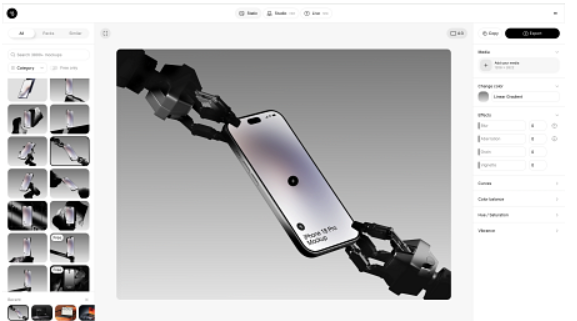
A free online mockup generator lets you place artwork onto a device, product, package, or printed surface through a browser editor. You choose a scene, upload your design, adjust its placement, and export the result.
It’s useful for everyday presentation tasks: showing an app on a phone, placing a logo on stationery, or preparing product graphics for a client deck. The template handles the initial composition, so you can focus on fitting the artwork and reviewing the image.
Editing options vary. One generator may offer little beyond artwork replacement; another may include background controls, color adjustments, or animated scenes. Free access can also come with restrictions on templates, resolution, or export features.
What Are PSD Mockups?
PSD mockups are Photoshop documents prepared for inserting artwork into a scene. Many use Smart Objects: editable containers that let you update a design while retaining the transformations applied to it.
Depending on how the template was built, you may be able to edit separate backgrounds, shadows, reflections, and color treatments. That control is useful when a presentation needs specific adjustments, such as matching a backdrop to a campaign palette.
A PSD extension alone doesn’t guarantee flexibility. Some templates contain a fixed photograph with only the artwork area editable. Check the layer structure and file description before choosing one.
You’ll also need software that supports the template’s features and enough familiarity with layers to make the required changes.
Free Mockup Generator vs PSD Mockups: Key Differences
| Feature | Online mockup generator | PSD mockups |
| Setup | Opens in a browser | Requires a compatible editor |
| Learning curve | Often straightforward for artwork replacement | Depends on the template and your layer-editing skills |
| Editing speed | Convenient for changes supported by the editor | Quick for simple replacements; longer for detailed edits |
| Customization | Limited to the available controls | Depends on the editable layers provided |
| Smart Objects | No need to edit them directly | Commonly used for artwork replacement |
| Animation | Available in some tools and scenes | A static PSD needs a separate animation workflow |
| Best fit | Prepared scenes and repeatable presentation tasks | Layer editing and custom compositing |
Choose according to the revision you expect. Replacing a logo is a different task from rebuilding the lighting or moving objects within a scene.
How Can I Create Realistic Mockups for My Design Portfolio Without Paying?
Start with a free scene that suits the work and supports the output you need. The LS Graphics mockup free collection includes resources for device, branding, packaging, and other presentations. Check the format and requirements of the selected asset.
A few choices make a substantial difference:

- Match the scene to the project. Show packaging at an angle that reveals the relevant panels, or choose a device view that keeps the interface readable.
- Prepare suitable artwork. Use sharp source files and preserve their proportions when placing them.
- Keep related images consistent. Similar lighting and backgrounds help several visuals work together in a case study.
- Leave room around the design. Avoid props or crops that hide important details.
- Inspect the final size. Check whether text and fine lines remain clear in the portfolio layout.
Free resources can be suitable for professional presentations. Review their usage terms as well as their visual quality.
How Can I Make a Polished Product Mockup for a Client in Under 10 Minutes for Free?
A ten-minute target is most realistic when your artwork is ready and the scene already fits the brief. Finding a template or resolving a difficult crop may take longer.
For a simple static presentation:
- Choose a free scene and confirm that the required export is included.
- Upload your artwork at suitable dimensions.
- Adjust its scale and position without stretching logos, typography, or interface elements.
- Refine the available settings, such as background color or canvas proportions.
- Export and inspect the result for cropping, sharpness, and unwanted reflections.
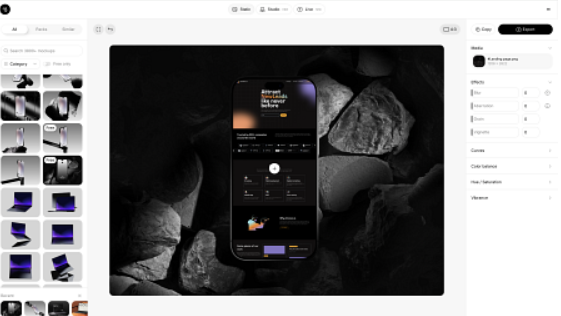
The online mockup generator free workflow from LS Graphics provides browser-based editing, with static mockups and animated device options. Select the scene type that matches your deliverable and check its available controls.
For a tight deadline, settle the composition before experimenting with effects. A clear static image may cover the brief without additional animation work.
How Do You Insert a Design Into a PSD Mockup?
For a template built around a Smart Object, the process usually follows these steps:
- Open a copy of the PSD in Photoshop.
- Find the artwork layer, often labeled “Your Design Here.”
- Double-click the Smart Object thumbnail to open its contents.
- Add your artwork and hide or remove the placeholder.
- Resize and position the design within the existing canvas.
- Save the Smart Object with Ctrl+S or Cmd+S.
- Return to the main document and review the updated mockup.
- Adjust any available scene layers, save your working file, and export the image.
Saving the Smart Object updates its appearance in the main document while retaining the template’s applied transformations. Avoid changing its canvas dimensions unless the template instructions require it.
Keep an untouched copy of the original so you can reuse it later.
Which Mockup Format Is Best for Professional Client Presentations?
Start with the deliverables and likely revisions. A browser editor is practical when a prepared scene provides the controls you need. A layered PSD is useful when you must adjust individual elements or combine the mockup with other imagery.
Detailed packaging work doesn’t automatically require Photoshop, and a quick website preview doesn’t automatically require an online tool. Your existing skills and the selected asset matter.
You can also combine the workflows. Prepare an initial visual online, gather feedback, and continue in Photoshop if further editing is needed. Check whether the generator exports a layered PSD; otherwise, continuing with editable layers may require a separate template.
Final Verdict: Free Mockup Generator or PSD Mockups?
Choose a free mockup generator when its scenes, controls, and export options cover the presentation you need. Choose PSD mockups when the template provides editable layers that support more specific changes.
Before committing, try your artwork in the scene and make a sample export. Readability, editing flexibility, and usage permissions will tell you more about its suitability than the file format or price alone.