

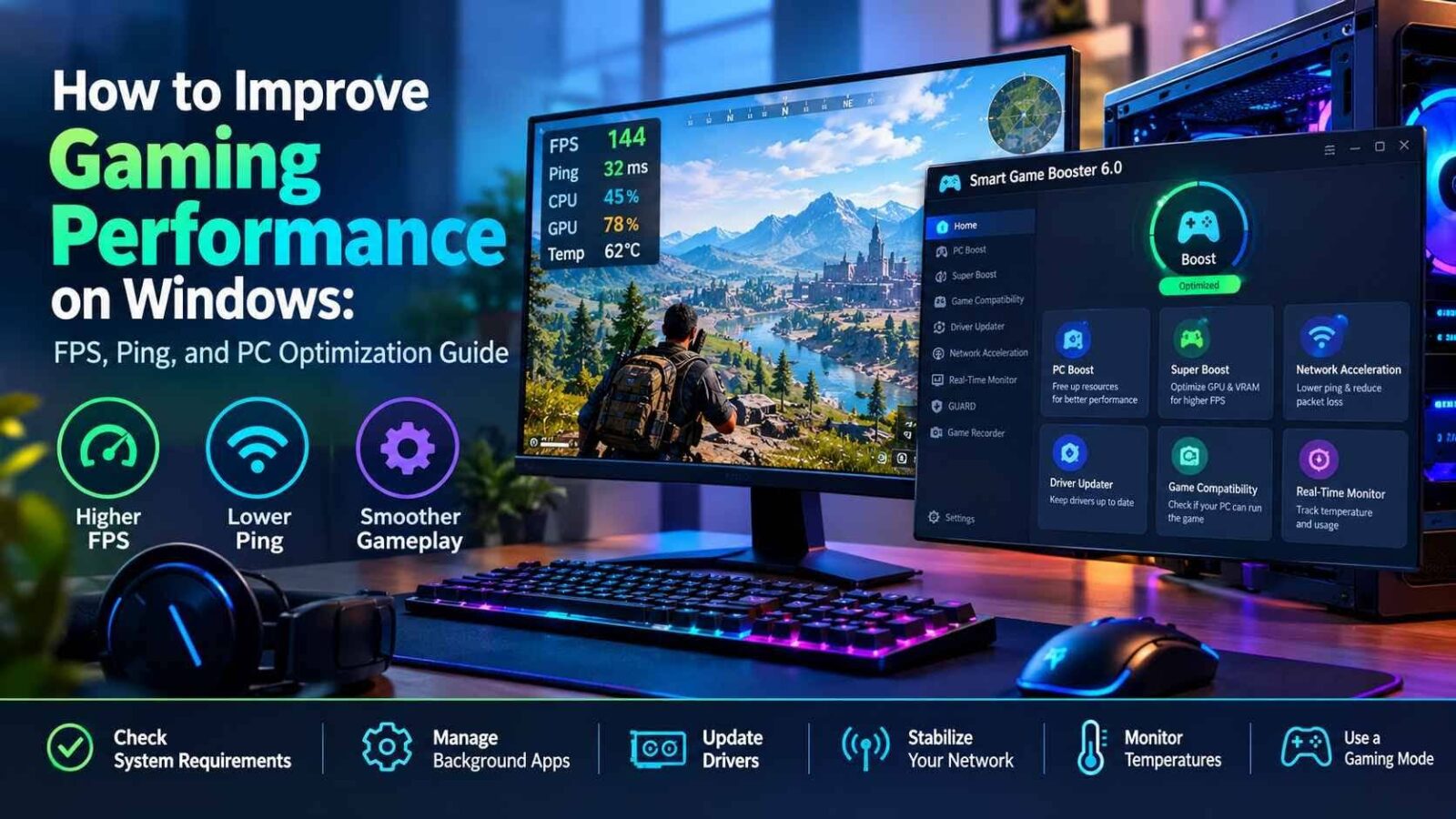
Modern PC games can put considerable pressure on both hardware and network connections. Even a capable gaming PC can experience frame drops, stuttering, high ping, or compatibility problems when system resources are being used by unnecessary applications or when the network route to a game server is unstable.
Improving gaming performance does not always mean buying a new graphics card or upgrading the entire computer. There are several practical ways to optimize Windows for gaming, from managing background processes and updating drivers to checking hardware compatibility and improving network stability. Tools such as Game Booster can also bring several of these tasks together in one place.
Start by Finding the Actual Performance Problem
Before changing system settings, it helps to identify what is causing the poor gaming experience.
If a game has a low frame rate, the graphics card, processor, available RAM, or graphics settings may be responsible. Stuttering can sometimes come from background applications consuming system resources. On the other hand, a game that runs smoothly but frequently disconnects or responds slowly may have a network-related problem rather than a hardware limitation.
Temperature is another factor worth monitoring. Gaming places a sustained load on the CPU and GPU, and excessive temperatures can affect performance. Windows users can therefore benefit from checking hardware usage and temperatures while a game is running instead of changing settings blindly.
Check Whether Your PC Can Run the Game
One of the easiest ways to avoid compatibility problems is to check the requirements of a game before installing it.
Smart Game Booster 6.0 includes a CAN I RUN IT feature designed for this purpose. According to the product information, its compatibility database covers more than 160,000 games, 3,000+ GPUs, and 9,000+ CPUs. It can compare a computer’s configuration with available game requirements and provide a quick indication of compatibility.
This can be particularly useful when deciding whether an older PC is suitable for a newly released title. Instead of relying only on the name of the graphics card or processor, checking the complete system configuration provides a more practical starting point.
Reduce Unnecessary Background Activity
Windows often has applications and services running in the background while a game is open. Browsers with multiple tabs, software updaters, cloud-sync applications, and other processes can consume CPU and RAM that could otherwise be available to the game.
Closing unnecessary applications manually can help, but it can become inconvenient when done before every gaming session.
Smart Game Booster 6.0’s PC Boost feature is designed to handle this process by disabling unnecessary background applications and services when optimizing the PC for gaming. Its Auto Boost feature can also detect when a game launches and automatically activate the gaming mode.
The benefit of this approach is convenience: instead of repeatedly checking background processes, gamers can use an automated optimization routine before starting a game.
Keep Graphics and Other Drivers Updated
Drivers act as a connection between Windows and hardware such as graphics cards and audio devices. Outdated drivers can sometimes cause compatibility problems, bugs, or performance issues with newer games.
For this reason, driver maintenance should be part of a regular PC gaming routine.
Smart Game Booster includes a Driver Updater that can help keep graphics and audio drivers current. Its broader Performance section also combines system cleanup, system tweaks, driver updates, and game defragmentation into a single optimization process.
It is still a good idea to create restore points or otherwise maintain a backup strategy before making significant system-level changes. Driver updates can improve compatibility, but every PC configuration is different.
Improve FPS Without Immediately Upgrading Hardware
Low FPS is one of the most common complaints in PC gaming. Before replacing hardware, gamers can often improve performance by adjusting graphics settings and reducing unnecessary system activity.
Features such as Super Boost in Smart Game Booster 6.0 are designed to optimize GPU and VRAM performance. According to the Press Kit, Super Boost can improve overall system performance by up to 30% in supported scenarios.
The software’s PC Boost function also focuses on freeing CPU and RAM resources by disabling unnecessary background activity. The Press Kit states that its Boost functionality can increase frame rates by up to 120% in supported scenarios.
These figures should not be treated as guaranteed results for every computer. Actual performance depends on the hardware, game, drivers, settings, and other conditions. Still, combining system optimization with sensible in-game graphics settings can provide a useful way to troubleshoot FPS problems before considering expensive upgrades.
High Ping Requires a Different Approach
Not every gaming problem is caused by the PC itself.
A game can run at a high frame rate while still feeling slow or unresponsive because of network latency. Ping, packet loss, congestion, and the route between a player’s connection and the game server can all affect online gameplay.
Smart Game Booster 6.0 introduces a dedicated Network Acceleration service designed to address these issues. The Press Kit says the service uses more than 500 game acceleration servers worldwide, covering regions including North America, South America, Europe, the Middle East, Asia, Oceania, and Africa.
The system uses dedicated gaming routes to help reduce latency and packet loss. It is also designed to handle cross-region connections and certain network restrictions.
The Press Kit states that latency can be reduced by up to 80% in supported scenarios. As with FPS improvements, the actual result will depend on the player’s ISP, location, game server, network conditions, and routing.
Monitor Temperature and Resource Usage
Performance optimization should not only focus on FPS. Hardware temperature and resource usage can provide important clues when troubleshooting gaming problems.
Smart Game Booster’s Real-Time Monitor can display hardware temperature and resource usage while the PC is operating. This makes it easier to see whether a CPU or GPU is working heavily or whether temperatures are rising during demanding games.
Monitoring can also help identify patterns. For example, if performance begins dropping after a long gaming session while temperatures are consistently high, cooling and airflow may deserve attention.
The software also includes Monitor Tune, which can apply display presets such as Gaming Mode and Movie Mode for different usage scenarios.
Use a Simple Optimization Routine
You do not need to change dozens of Windows settings every time you want to play.
A practical routine can be as simple as:
- Check whether the PC meets the game’s requirements.
- Close unnecessary applications.
- Make sure graphics and audio drivers are updated.
- Adjust demanding in-game graphics settings if FPS is low.
- Check network stability when playing online.
- Monitor CPU and GPU temperatures during longer sessions.
- Use PC optimization or gaming mode before launching demanding titles.
Smart Game Booster 6.0 combines many of these functions into one application. In addition to PC optimization and network acceleration, it includes a built-in game recorder, security features through GUARD, game compatibility checking, driver updates, and real-time monitoring.
What About Older PCs?
Optimization software cannot replace modern hardware when a computer is fundamentally below a game’s requirements. If a system has an outdated processor, insufficient RAM, or a graphics card that cannot handle a game’s workload, software changes have limitations.
However, optimization can still help identify where the actual bottleneck is and make sure available hardware resources are being used efficiently.
For older PCs, reducing unnecessary background activity, lowering graphics settings, updating drivers, and checking compatibility can be worthwhile steps before deciding whether an upgrade is necessary.
Final Thoughts
Getting better gaming performance on Windows is usually a combination of several small improvements rather than one universal setting. FPS depends heavily on hardware and graphics configuration, while online responsiveness also depends on network conditions and server routing.
Smart Game Booster 6.0 takes a broader approach by combining PC optimization, GPU and VRAM tuning, network acceleration, driver management, game compatibility checking, and hardware monitoring. Its 500+ global acceleration servers and large compatibility database make it particularly relevant to gamers who want to manage both system and network-related issues from one application.
For gamers troubleshooting low FPS, high ping, compatibility problems, or background resource usage, starting with a clear diagnosis and then applying targeted optimizations is a practical way to improve the overall gaming experience without immediately investing in new hardware.
Frequently Asked Questions
1. How can I improve FPS on a Windows gaming PC?
You can improve FPS by closing unnecessary background applications, updating graphics drivers, lowering demanding in-game graphics settings, monitoring CPU and GPU temperatures, and using PC optimization or gaming modes where appropriate.
2. What causes high ping while gaming?
High ping can result from network congestion, long distances to game servers, ISP routing, Wi-Fi instability, or packet loss. Network acceleration tools may help in some situations by using optimized routes to gaming servers.
3. Can Smart Game Booster improve gaming performance?
Smart Game Booster includes features such as PC Boost, Super Boost, driver updates, and network acceleration that are designed to optimize different aspects of gaming performance. Actual improvements vary depending on the PC, game, drivers, network, and existing configuration.
4. How do I know if my PC can run a particular game?
Check the game’s minimum and recommended system requirements and compare them with your CPU, GPU, RAM, and operating system. Smart Game Booster’s CAN I RUN IT feature can also compare your PC configuration with its game compatibility database.
5. Should I update my graphics drivers for better gaming performance?
Yes. Keeping graphics drivers updated can improve compatibility, address bugs, and sometimes improve performance in newer games. It is sensible to use restore points or another backup method before making significant system-level changes.
6. Can gaming optimization software replace a hardware upgrade?
No. Optimization software cannot overcome hardware that is fundamentally below a game’s requirements. However, reducing background activity, updating drivers, optimizing settings, and improving network conditions can help make better use of the hardware you already have.